> ## Documentation Index
> Fetch the complete documentation index at: https://docs.payaza.africa/llms.txt
> Use this file to discover all available pages before exploring further.
# WordPress
Effortlessly start accepting card payments, bank transfers, and other payment methods with the official Payaza Plugin for WooCommerce. Easily integrate Payaza into your store and give your customers a smooth, secure payment experience.
Before you begin, ensure you have the following: - A **Payaza merchant
account** — [Create an account here](https://business.payaza.africa/signup). -
An active **WordPress** site with the **WooCommerce** plugin installed.
## Configuration
Please adhere to the steps outlined below to configure your Payaza plugin:
Access your store's WordPress Admin dashboard and navigate to the 'Plugins' section in the left-hand side menu.
Click on the dropdown menu and select the **'Add new'** button.
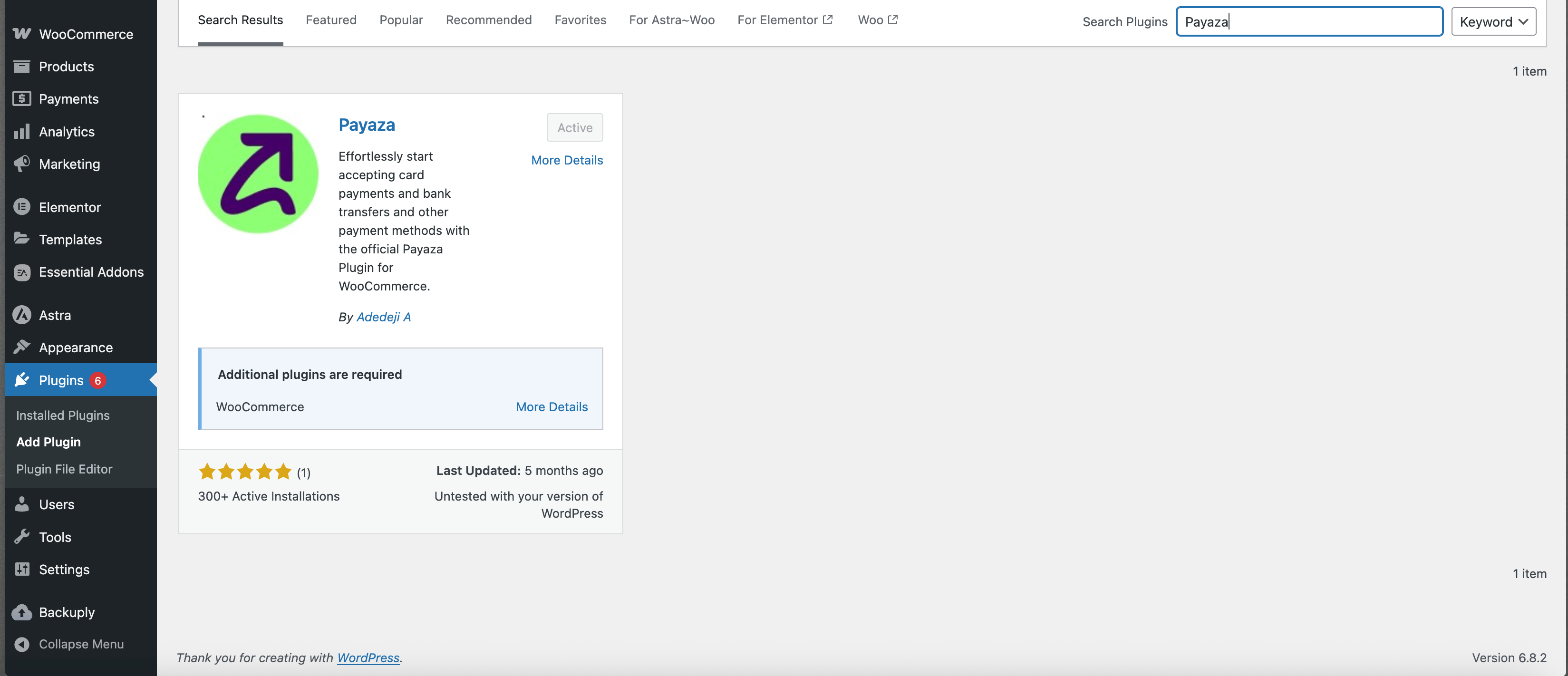
Search for Payaza and install the plugin as directed.
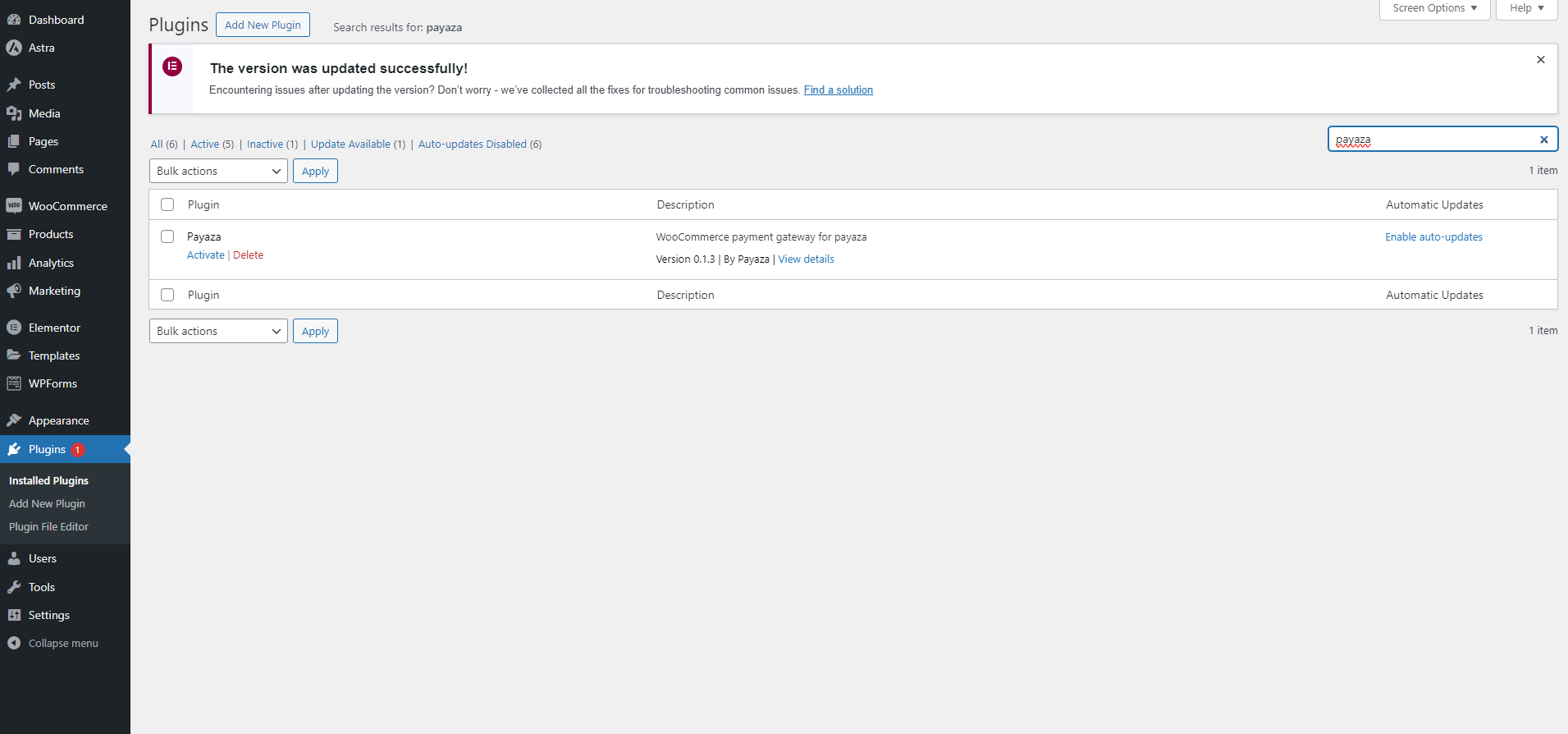
 After installation, locate the 'Installed Plugins' section in the left-hand side menu under Plugins. Activate the Payaza plugin that was recently installed.
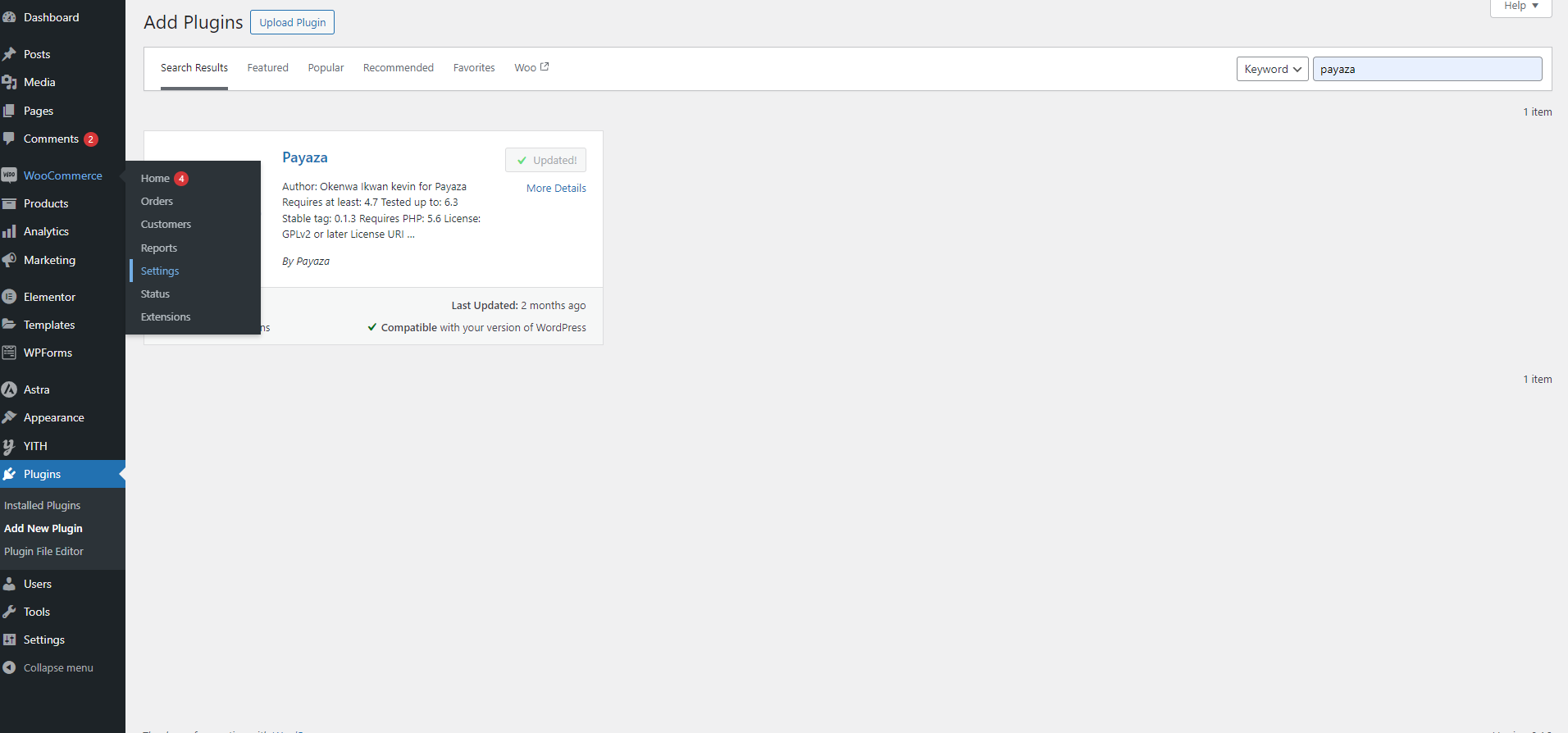
 Further customization can be done by clicking on Woocommerce > Settings in the left menu.
You can retrieve your API keys from your Payaza merchant dashboard under **Settings > API Keys & Webhooks**.
Further customization can be done by clicking on Woocommerce > Settings in the left menu.
You can retrieve your API keys from your Payaza merchant dashboard under **Settings > API Keys & Webhooks**.
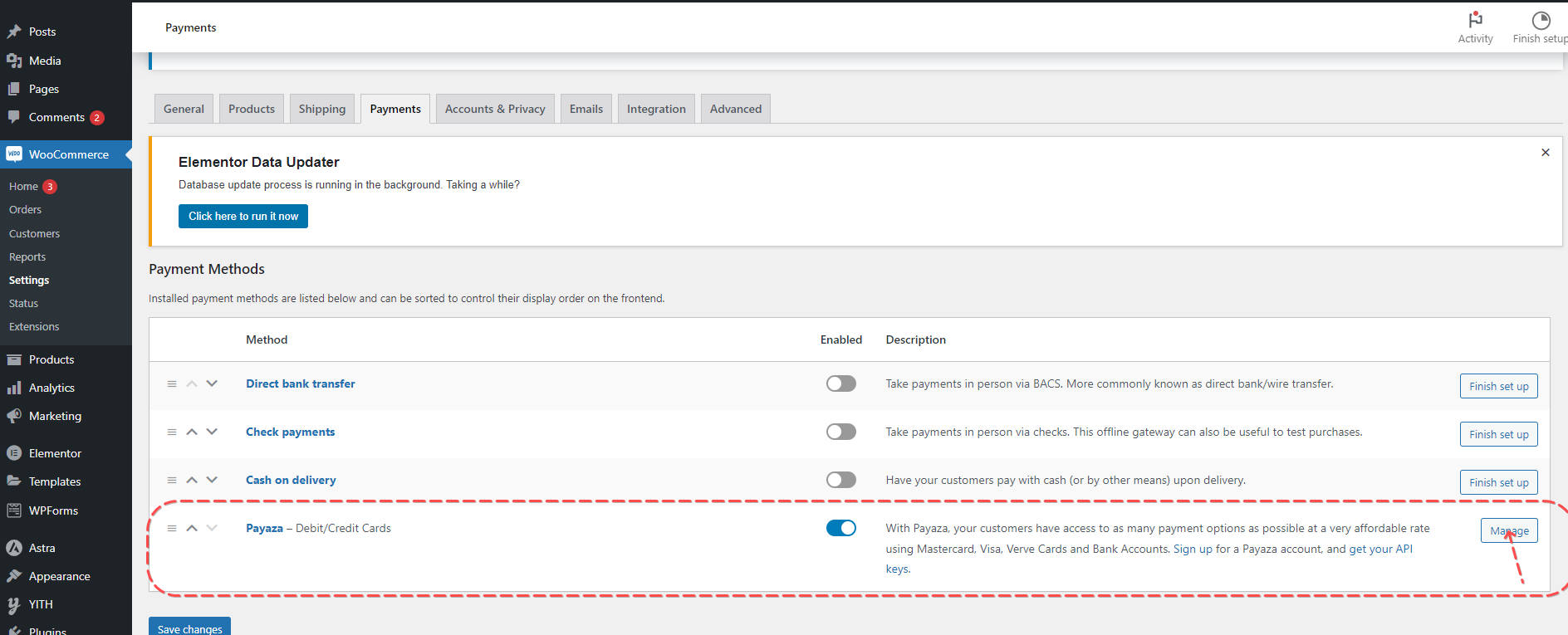
 Navigate to payments, and click on 'Manage' to configure your settings as required.